Quick Start: Build Your First Trading Strategy Without Code
This guide takes you from an empty browser tab to a strategy installed on a demo account: pick a ready-made starting point, change its numbers, add a rule for the other direction, backtest it on real historical market data and export it to MetaTrader 5, MetaTrader 4 or cTrader.
Last updated
To build a first strategy in AlgoPuzzle, open the builder, click New and pick a starting point such as RSI oversold. Click any number on the blocks to change it, duplicate the rule and switch it to Open SELL if you also want to sell, then switch to Backtest to see how it would have traded on historical data. When you are happy, click Export to MT5, Export to MT4 or Export to cTrader and install the downloaded file on a demo account. Building, backtesting and exporting are free; backtesting and exporting need a free account (email and password, no card).
Before you start
You need three things, and only the first one for the building part:
- A web browser. The builder works on phones and tablets too, but a computer with a mouse is the most comfortable way to drag blocks around.
- A free AlgoPuzzle account for the backtest and the export. It takes an email address and a password, and no payment card. You can build without one and create it when the builder asks.
- A trading platform with a demo account for the last step: MetaTrader 5, MetaTrader 4 or cTrader. Most brokers open a demo account in a few minutes.
The whole walkthrough takes about ten minutes. You will not write any code: every step is a click, a drag or a typed number.
Step 1: Open the builder and pick a starting point
Open the builder with the Open the Builder button at the top of this page. On your first visit the starting points open by themselves. Later, click New in the header to see them again.
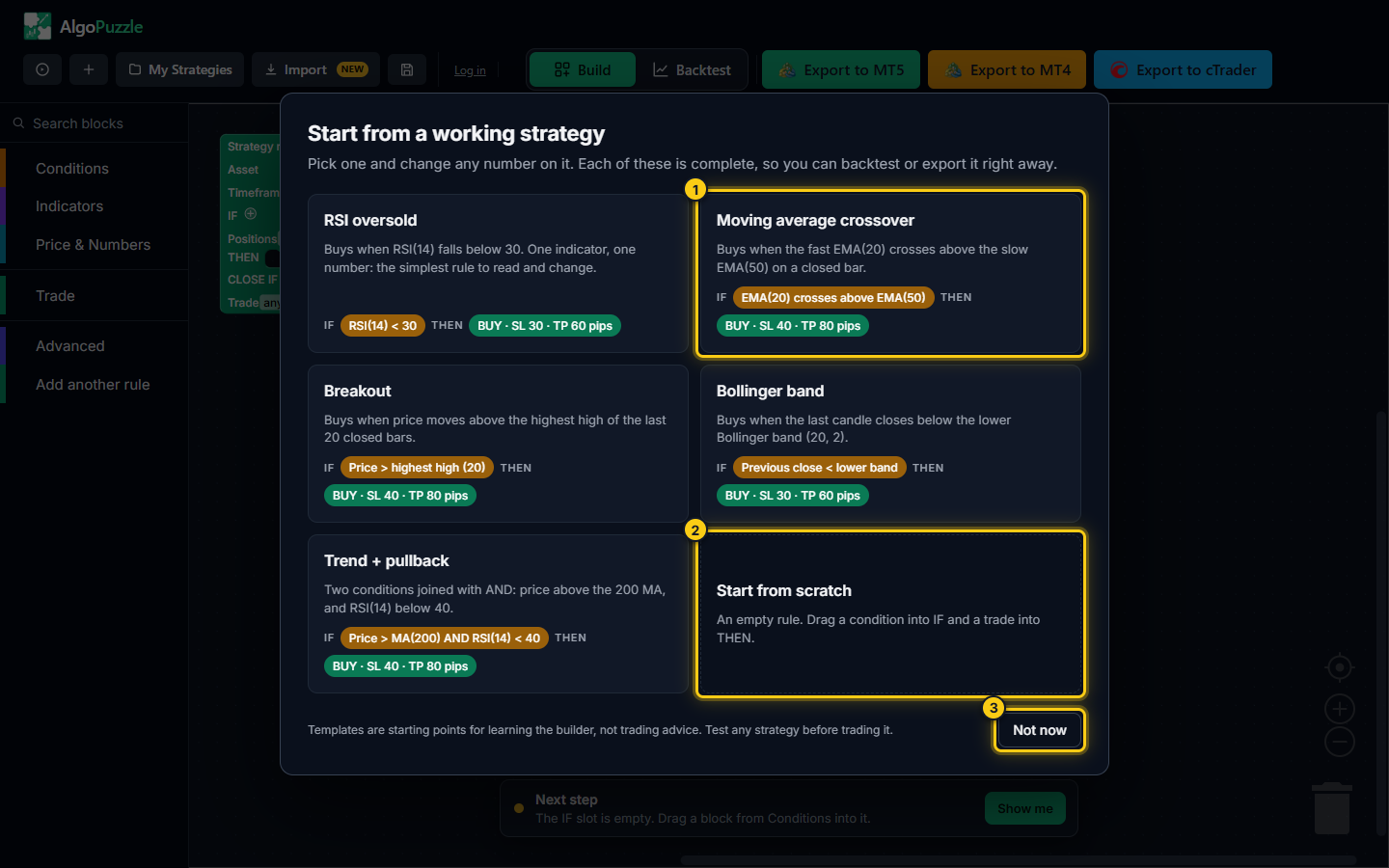
- A ready-made strategy, such as Moving average crossover, loads complete and ready to test.
- Start from scratch gives you an empty rule to fill yourself.
- Not now closes the window; reopen it any time with New.
Each starting point is a complete strategy: you can backtest or export it right away and change any number on it. All of them trade EUR/USD on the 1 Hour timeframe, open a buy trade of 0.1 lot, and allow one open position at a time.
| Starting point | IF (the entry condition) | THEN (the trade) |
|---|---|---|
| RSI oversold | RSI(14) is below 30 | Buy, stop loss 30 pips, take profit 60 pips |
| Moving average crossover | EMA(20) crosses above EMA(50) on the closed bar | Buy, stop loss 40 pips, take profit 80 pips |
| Breakout | Current price is above the highest high of the last 20 closed bars | Buy, stop loss 40 pips, take profit 80 pips |
| Bollinger band | The previous candle closed below the lower Bollinger band (20, 2) | Buy, stop loss 30 pips, take profit 60 pips |
| Trend + pullback | Price is above the 200-period moving average AND RSI(14) is below 40 | Buy, stop loss 40 pips, take profit 80 pips |
| Start from scratch | Empty | Empty |
For this guide, pick RSI oversold: one indicator and one number, the easiest rule to read and change. If something is already on the canvas and you have not saved it, the builder asks before replacing it.
Note.The starting points are there to learn the builder. They are not trading advice and say nothing about how a strategy will perform. Test anything before you trade it.
Step 2: Read the rule
The green block on the canvas is a Strategy rule. It reads from top to bottom like a sentence:
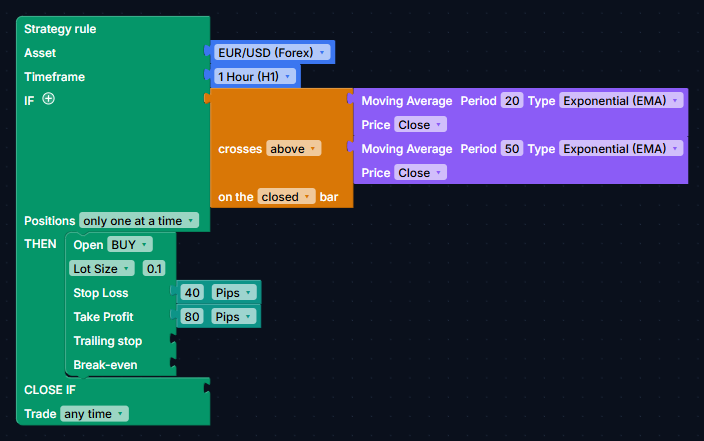
- Asset and Timeframe: which market the rule trades and which candles it reads (EUR/USD, 1 Hour).
- IF: the condition that has to be true to open a trade. Here: RSI with period 14 is below 30.
- Positions: only one at a time means the rule does not open a second trade while its first one is still open.
- THEN: what to do. Here: Open BUY with a Lot Size of 0.1, a Stop Loss of 30 pips and a Take Profit of 60 pips.
- CLOSE IF: an optional exit condition. Empty means the trade closes at its stop loss or take profit.
- Trade any time: the rule may open trades at any hour. You can limit it to set hours and weekdays.
The rule is checked once at the start of every new candle of its timeframe, so a 1 Hour rule looks at the market once an hour. The full explanation is in Strategy rules.
Step 3: Change the values
Every number and every dropdown on a block can be edited in place. Nothing has to be dragged for this step.
- Change the RSI level. Click the number
30next to the RSI block and type25. A lower level means the rule waits for a deeper drop before buying. - Change the market. Click EUR/USD (Forex) in the Asset slot. The list is searchable: type
goldorgbpto find a market. If your broker's symbol is not listed, pick Custom / Other... and type it exactly as your broker names it. - Change the timeframe. Click 1 Hour (H1) and choose, for example, 4 Hours (H4).
- Change the stop loss and take profit. Click the 30 in Stop Loss and the 60 in Take Profit. The dropdown next to each number switches between Pips, % of Entry Price and Raw Price Distance.
- Change the trade size. Click 0.1 next to Lot Size, or switch the dropdown to Risk % of balance to size each trade from the stop loss distance.
Every change is kept in your browser automatically. To keep a named copy, click Save in the header. Stop losses, take profits, trailing stops, break-even and risk-based lot sizes are covered in Trades, stops and lot size.
Step 4: Add a rule for the other direction
A Strategy rule opens trades in one direction. To buy and sell in the same strategy, you use two rules: one with Open BUY, one with Open SELL. The quickest way is to copy the rule you already have:
- Duplicate the rule. Right-click the words Strategy rule at the top of the green block and choose Duplicate. A copy appears slightly offset from the original.
- Move the copy. Drag the copy by its Strategy rule label so it sits below the first rule and nothing overlaps.
- Switch the trade. In the copy, click Open BUY and choose Open SELL.
- Reverse the condition. In the copy, click the
<sign in the comparison and choose>, then change 25 to75. The sell rule now reads "IF RSI(14) > 75 THEN Open SELL".
Instead of duplicating, you can also open the Add another rule drawer in the toolbox and drag a fresh, empty rule onto the canvas, then fill its IF and THEN slots yourself.
Each rule has its own asset and timeframe, and each manages only its own trades. All the rules on the canvas are exported together as one file. See Multiple rules.
Step 5: Check the Next step bar
The bar at the bottom of the canvas checks the strategy while you build. When something is missing, it says what, for example "The THEN slot is empty", and its Show me button highlights the block and opens the drawer the missing piece comes from.
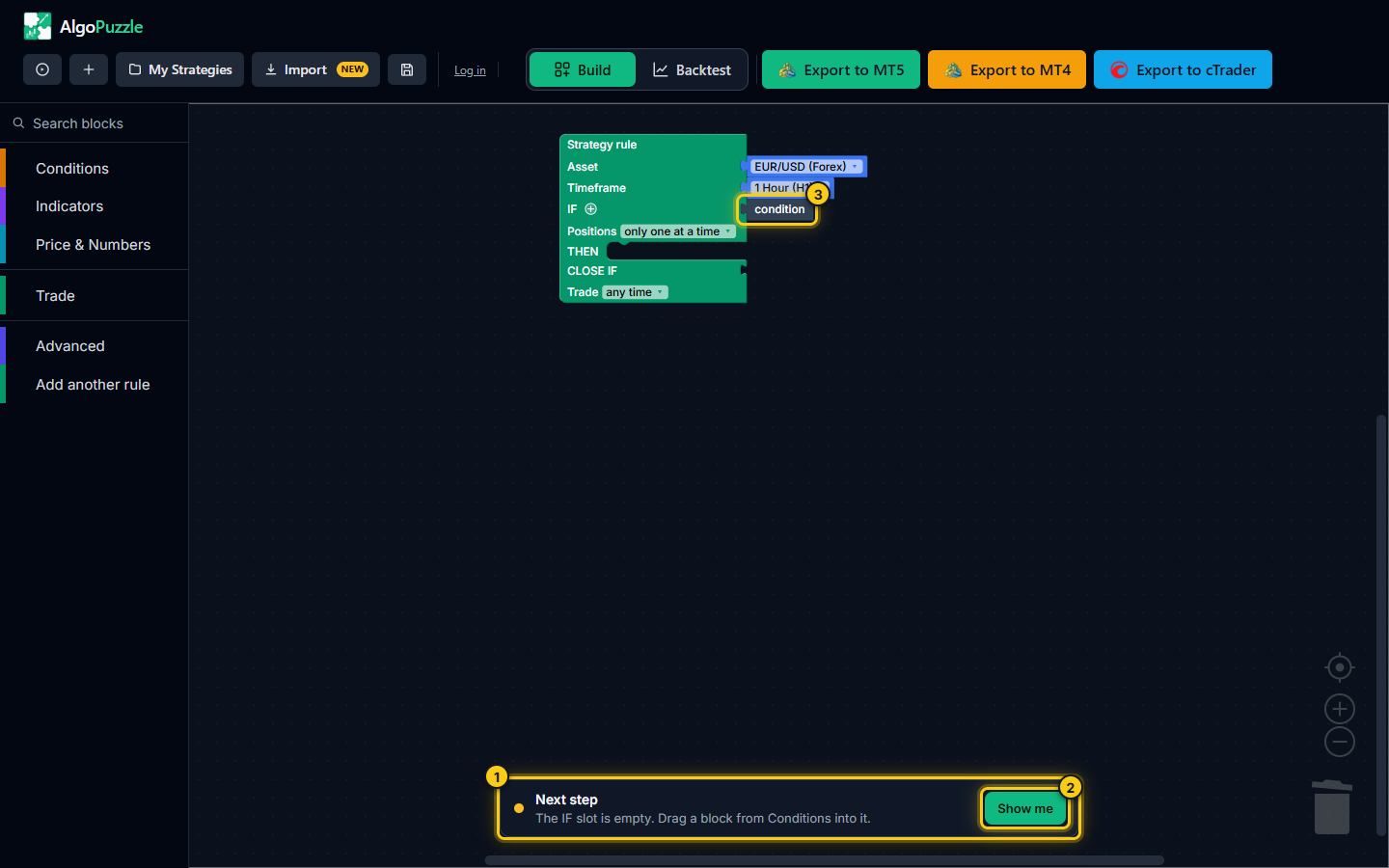
- The Next step bar names what is missing.
- Show me highlights where to take the block from.
- The empty slot it is talking about.
When nothing is missing, the bar says Your strategy is complete and offers a Backtest button. The same check runs before every backtest and export, so a strategy the bar accepts can always be tested and exported. More in The builder screen.
Step 6: Run a backtest
A backtest replays your strategy on real historical market data and shows every trade it would have taken. It takes a few seconds and you never leave the builder.
- Switch to Backtest. Click Backtest in the Build | Backtest switch in the header, or the Backtest button on the Next step bar. Your blocks stay where they are; the canvas is only hidden.
- Log in if asked. Historical data loads for logged-in users. Use Log in in the header, or create a free account from the same window.
- Set up the test. Choose the Period (1W, 1M, 3M, 6M, 1Y or Custom, depending on how much history the market has), check the Spread in pips (a typical value is filled in; use your broker's) and the Starting balance.
- Click Run backtest. The first run downloads the price history, so it can take a little longer than the next ones.
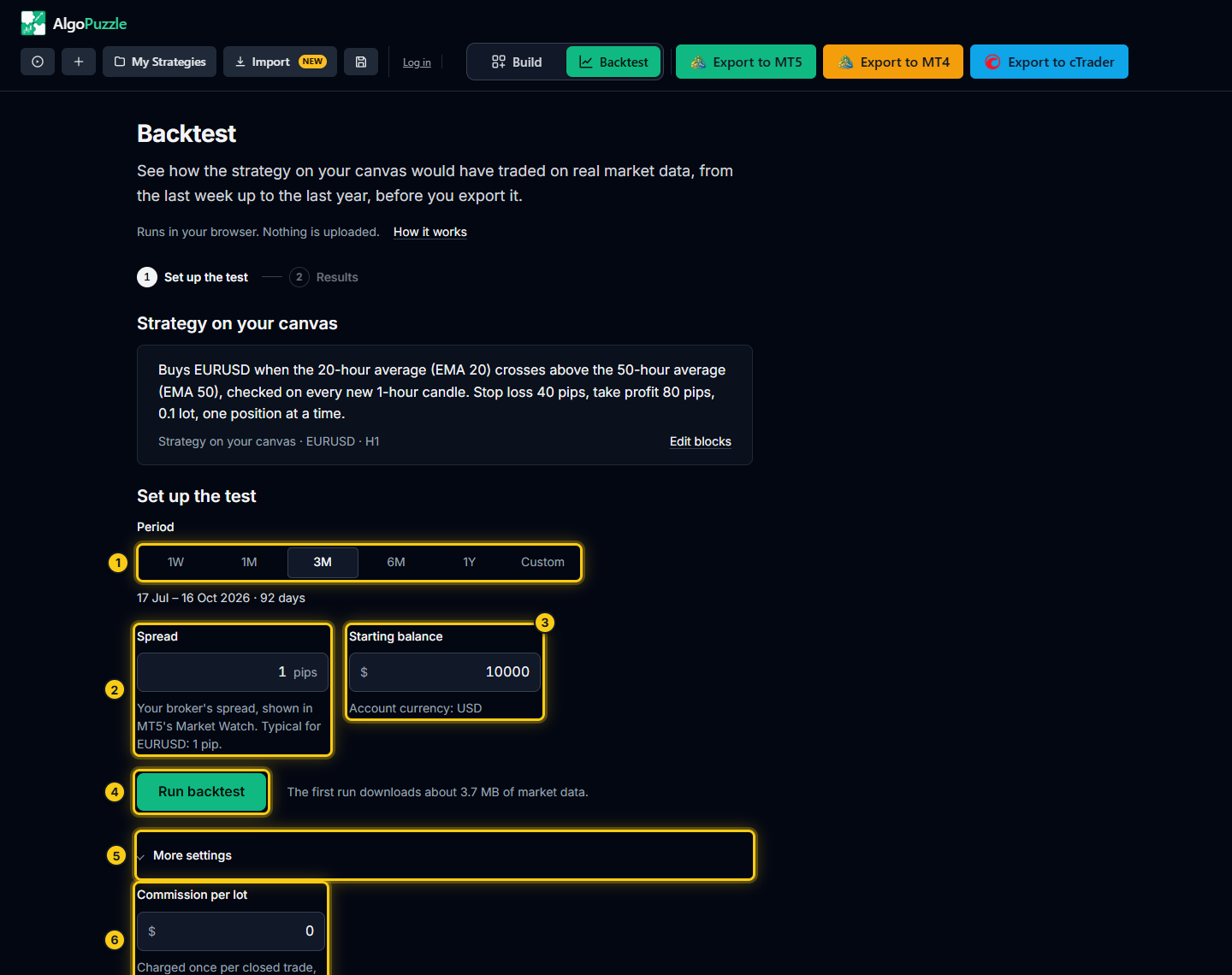
- Test period.
- Spread in pips.
- Starting balance.
- Run backtest.
- More settings.
- Commission per lot (inside More settings).
The results show the net profit, return, maximum drawdown, profit factor and win rate, a price chart with every trade, a balance chart and the list of trades. Reading backtest results explains each number. If you see "The rule never fired in this period", the condition was never true: loosen it (for example RSI 30 instead of 25) or test a longer period.
Backtests are hypothetical.A backtest shows how a set of rules would have behaved on past prices. It is a quick simulation: spreads, swaps and fills at a real broker differ, and past results do not guarantee future results. See the risk disclosure.
Step 7: Adjust and test again
You will rarely keep the first version. There are two ways to change it:
- Adjust strategy in the results changes the strategy's numbers and reruns the test without touching the canvas. When you like a version, Apply to canvas writes the new values back into the blocks.
- Back to Build (or Build in the header switch) takes you back to the blocks for bigger changes, such as a new condition. Switch to Backtest again to rerun.
Change one thing at a time and keep notes, so you know which change made the difference. Be careful with tuning numbers until the past looks perfect: a strategy fitted too closely to one period tends to disappoint on the next one. The Monte Carlo tab helps you see how much a result depends on luck and trade order.
Step 8: Export the strategy
- Click an export button. Export to MT5 makes a MetaTrader 5 Expert Advisor (
.mq5), Export to MT4 a MetaTrader 4 Expert Advisor (.mq4), and Export to cTrader a cTrader cBot (.cs). - Log in or sign up. If you are not logged in, the log-in window opens. After you log in or create your free account, the export continues by itself.
- Find the download. The builder confirms "Export complete! Your .zip download has started." The .zip contains the strategy file and a
README.txtwith the installation steps for that platform.
Exporting is free and there is no limit on the number of exports. If the strategy is not complete, the export stops and the Next step bar shows what is missing.

- Export to MT5.
- Export to MT4.
- Export to cTrader.
- How to run? - installation videos and the written guide.
Step 9: Install it on a demo account
The README.txt in the .zip walks you through the installation. In MetaTrader 5 the short version is:
- Log in to a demo account and click File > Open Data Folder.
- Open MQL5 > Experts and paste the
.mq5file from the .zip there (in MetaTrader 4: MQL4 > Experts). - In the Navigator panel (Ctrl+N), right-click Expert Advisors and choose Refresh.
- Right-click the strategy, choose Modify and press F7 to compile. The Errors tab must show 0 errors.
- Drag the strategy onto any chart, tick Allow Algo Trading on the Common tab and click OK.
- Turn on the Algo Trading button in the toolbar, then check the Experts tab of the Toolbox (Ctrl+T) for one start-up line per rule.
The strategy always trades the asset and timeframe set in each rule, whatever chart you attach it to. In cTrader, you create a new cBot in Automate, paste the code from the .cs file and build it; the README has every step.
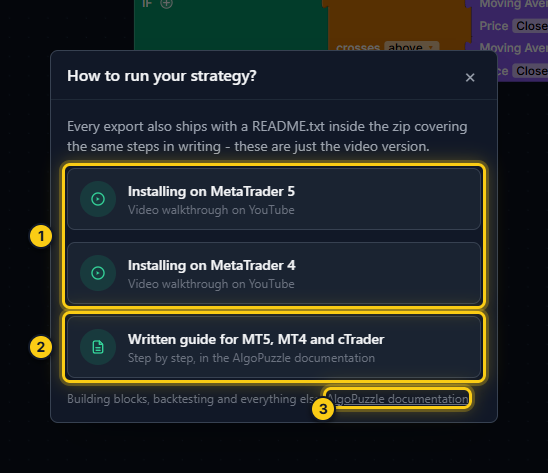
- Video walkthroughs for MetaTrader 5 and MetaTrader 4.
- The written installation guide for all three platforms.
- This documentation.
Full instructions for all three platforms, including how to check that the strategy is running, are in Export to MT5, MT4, cTrader.
Start on a demo account.Run every new strategy on a demo account first and watch how it behaves for a while. Trading leveraged products carries a high risk of loss; only move to real money once you understand what the strategy does and accept the risk.
Where to go next
Frequently asked questions
Do I need to know how to code to use AlgoPuzzle?
No. You build the strategy from blocks and edit numbers and dropdowns on them. AlgoPuzzle writes the platform code for you when you export, as an Expert Advisor for MetaTrader 5 or MetaTrader 4 or a cBot for cTrader.
Is AlgoPuzzle free?
Building, backtesting and exporting strategies are free at the moment, with no limit on exports. Backtesting and exporting need a free account with an email address and a password; no payment card is asked for. Strategies in the Strategy of the Week marketplace are sold individually.
Why does my strategy only buy?
A Strategy rule opens trades in one direction, and all starting points are buy rules. To sell as well, add a second rule with Open SELL and an opposite condition, for example by duplicating the first rule.
Can I start from an empty canvas instead of a starting point?
Yes. Click New and choose Start from scratch. You get an empty Strategy rule: drag a condition from the Conditions drawer into IF and an Open BUY or Open SELL block from the Trade drawer into THEN.
Does a good backtest mean the strategy will make money?
No. A backtest is a hypothetical replay of past prices. Real spreads, swaps, fills and future market conditions differ, so past results do not guarantee future results. Use the backtest to understand and compare ideas, then test on a demo account.
Which chart should I attach the exported strategy to?
Any chart. The exported strategy trades the asset and timeframe set in each of its rules, whatever chart it is attached to. Make sure your broker offers that symbol under the same name, or set it with Custom / Other... in the Asset slot.
Stuck on a step? Email support@algopuzzle.com and tell us where.