Export to MT5, MT4 and cTrader
Turn the strategy on your canvas into real platform code, install it on MetaTrader 5, MetaTrader 4 or cTrader, and check that it runs, first in the Strategy Tester and on a demo account.
Last updated
The Export to MT5, Export to MT4 and Export to cTrader buttons in the builder header download a .zip with your strategy as real platform code (an Expert Advisor .mq5 or .mq4, or a cTrader cBot .cs) and a README.txt with the installation steps. Exporting is free and needs a free account. To run it, copy the file into the platform, compile it, attach it to any chart, turn on Algo Trading (AutoTrading in MT4) and check the Experts tab for the initialization message. The strategy trades the asset and timeframe set in each rule, whatever chart it is attached to. Always start on a demo account.
What each export button produces
| Button | Platform | Inside the .zip |
|---|---|---|
| Export to MT5 | MetaTrader 5 | strategy.mq5 (Expert Advisor source code), README.txt, and Installation_Tutorial.html, a small page that opens the MetaTrader 5 video walkthrough |
| Export to MT4 | MetaTrader 4 | strategy.mq4, README.txt, and Installation_Tutorial.html for the MetaTrader 4 video |
| Export to cTrader | cTrader | AlgoPuzzleBot.cs (cBot source code) and README.txt |
The README.txt starts with a summary of your strategy (each rule's asset, timeframe, trades and positions setting), followed by the installation steps for that platform and safety notes. All rules on the canvas are exported together as one file; each rule keeps its own asset, timeframe and positions, and runs independently of the others.
How to export
- Finish your strategy. The Next step bar at the bottom of the builder says Your strategy is complete when nothing is missing.
- Run a backtest first if you have not yet. It is the quickest way to see whether the rules trade the way you meant.
- Click Export to MT5, Export to MT4 or Export to cTrader in the header. If you are not logged in, the sign-up / log-in window opens; after you log in the export continues on its own.
- While the file is being made the header shows Generating EA... (or Generating cBot...). When it is done you see Export complete! Your .zip download has started.
- Unzip the download and follow the steps for your platform below, or the README.txt inside.
Account.Building, backtesting and exporting are free, with no limit on exports. Exporting needs a free account: email and password, no card. See Account and saved strategies.

- MetaTrader 5.
- MetaTrader 4.
- cTrader.
- How to run?
Empty or incomplete canvas
- On a canvas nobody has built on yet, an export button opens the starting points instead, with the note "There is nothing to export yet. Pick a strategy to start from, then export it." Pick one, adjust it, then export.
- On an incomplete strategy, the export stops and the Next step bar shows what is missing, for example an empty IF or THEN slot. Show me highlights the block and the drawer to take the missing piece from. The same check runs before a backtest.
Before you install: three things to know
It trades the rule's asset and timeframe, not the chart's
The exported strategy always trades the asset and timeframe set in each rule, whatever chart it is attached to. A rule set to EURUSD on 1 Hour trades EURUSD hourly candles even when the strategy sits on a GBPJPY 5-minute chart. One chart is enough for a strategy with several rules on different assets.
Broker symbol names
Brokers do not all name instruments the same way: EURUSD can be EURUSD.m, EURUSDpro or similar, and indices and metals vary even more. The exported strategy looks for a matching symbol on your broker when it starts. If it cannot find one, it does not start and prints a message like "Rule 1: no symbol matching ... was found on this broker". Check the exact name in Market Watch (MetaTrader) or the symbol list (cTrader), then pick Custom / Other... in the rule's Asset dropdown, type the name exactly as your broker shows it, and export again.
Stop loss and take profit are managed by the strategy
The exported strategy watches its own stop loss and take profit on every price change instead of sending them to the broker with the order. That means:
- The platform's position list (the Trade tab in MetaTrader, Positions in cTrader) shows no stop loss or take profit values. This is expected, not a bug.
- When the strategy closes a trade for you, the Experts tab (Log tab in cTrader) prints "Virtual Stop Loss triggered" or "Virtual Take Profit triggered".
- Stops only work while the platform is running and connected. If you close the platform or lose the connection, open trades have no stop loss at the broker. Traders who run a strategy around the clock usually keep the platform on a VPS.
Install on MetaTrader 5
- Open MetaTrader 5 and log into your account. Start with a demo account.
- Open the data folder: in the top menu click File > Open Data Folder.
- Copy the file: open
MQL5>Expertsand pastestrategy.mq5from the zip there (not into a subfolder). - Refresh the Navigator: back in MetaTrader 5, open the Navigator (Ctrl+N), right-click inside Expert Advisors and choose Refresh. MetaTrader does not notice new files on its own while it is running.
strategynow appears in the list. - Compile: right-click
strategyand choose Modify. MetaEditor opens; press F7 (or Compile). The Errors tab must show 0 errors; warnings are fine. Close MetaEditor. - Attach it to a chart: open a chart of any symbol and timeframe and drag
strategyfrom the Navigator onto it. In the dialog, open the Common tab, tick Allow Algo Trading and click OK. - Enable Algo Trading: click the Algo Trading button in the main toolbar so it turns green. It is a global switch: without it no Expert Advisor trades.
- Confirm it is running: open the Toolbox (Ctrl+T) and click the Experts tab. Within a few seconds you should see one line per rule, such as
AlgoPuzzle EA - Rule 1 initialized on EURUSD (magic ...), followed by a few lines of symbol details. A red error line instead usually says what is wrong, for example a symbol name mismatch or Algo Trading switched off.
On an MT5 account in netting mode, MetaTrader keeps only one position per symbol, so two rules trading the same asset are merged into one position. On a hedging account, or when rules trade different assets, each rule's trades stay separate.
Install on MetaTrader 4
- Open MetaTrader 4 and log into your account, a demo account to begin with.
- Open the data folder: File > Open Data Folder.
- Copy the file: open
MQL4>Experts(MQL4, not MQL5) and pastestrategy.mq4there. - Refresh the Navigator: open the Navigator (Ctrl+N), right-click inside Expert Advisors and choose Refresh.
- Compile: right-click
strategy, choose Modify and press F7 in MetaEditor. The Errors tab must show 0 errors. Close MetaEditor. - Attach it to a chart: drag
strategyonto a chart of any symbol. In the dialog, on the Common tab, tick Allow live trading and click OK. - Enable AutoTrading: click the AutoTrading button in the main toolbar so it turns green.
- Confirm it is running: open the Terminal window (Ctrl+T), Experts tab, and look for one
AlgoPuzzle EA - Rule 1 initialized on ...line per rule.
MetaTrader 4 has no netting accounts, so every trade the strategy opens is a separate ticket.
Install on cTrader
- Open cTrader and log into your account, a demo account to begin with.
- Open Automate: click Automate in the left-hand navigation.
- Create a cBot: click New cBot (or the + button) and give it a name. It opens in the code editor with a default template.
- Paste the code: select all the template code and replace it with the contents of
AlgoPuzzleBot.csfrom the zip. - Build: press Ctrl+B (or Build). The build result must show 0 errors.
- Add it to a chart: open a chart of any symbol, click the Add cBot icon in the chart toolbar, choose your cBot and click Add to chart. It appears as a panel, not started yet.
- Start it: click Start on the panel and choose an instance type. Local instance runs on your computer and trades only while cTrader is open and connected; Cloud instance runs on cTrader's servers around the clock. For a first demo test, Local is simplest.
- Confirm it is running: open the Log tab at the bottom (next to Positions, Orders and History) and look for
AlgoPuzzle cBot - Rule 1 initialized on ...for every rule. If nothing appears, check that the instance shows as running and that the asset was found on your broker.
How to run? videos
The How to run? button in the builder header opens How to run your strategy? with video walkthroughs of the same steps:
- Installing on MetaTrader 5 (YouTube)
- Installing on MetaTrader 4 (YouTube)
cTrader has written steps only, in the README.txt of its export and above.
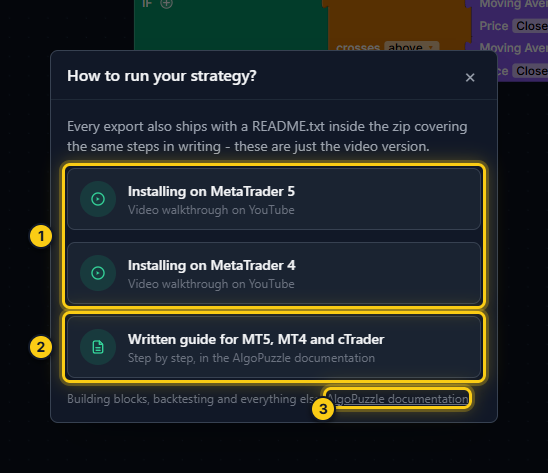
- Video walkthroughs for MetaTrader 5 and MetaTrader 4.
- This written guide.
- The full documentation.
Check it in the Strategy Tester first
The AlgoPuzzle backtest is a quick check. Before trading, run the exported file in your platform's own tester on the same symbol, timeframe and dates:
- In MetaTrader, open the Strategy Tester (Ctrl+R), choose
strategyas the Expert, then the symbol, timeframe and dates. - For the closest result in MetaTrader 5, choose the modelling Every tick based on real ticks, especially for strategies with a tight trailing stop.
- Start the test and compare the trades with your AlgoPuzzle backtest. Some difference is normal: spreads, swaps, commission and fills differ between brokers and data.
- In cTrader, use the cBot's own backtesting in Automate.
If AlgoPuzzle's backtest cannot simulate a block yet, it says so and lists it rather than showing numbers that might be wrong. Such a strategy can still be exported and tested in the Strategy Tester.
Demo first
Run every new strategy on a demo account for a while before using real money. Check that trades open on the right asset and timeframe, that stops close trades as expected, and that the lot size is what you meant. Backtest and Strategy Tester results are hypothetical; live spreads, slippage and broker rules can change the outcome.
Risk notice.Trading leveraged products carries a high risk of loss. Past results do not guarantee future results. See the risk disclosure.
Frequently asked questions
Is exporting free?
Yes. Building, backtesting and exporting are free, with no limit on exports. Exporting needs a free AlgoPuzzle account (email and password, no card). Individual Strategy of the Week strategies are paid; see the Strategy of the Week page.
Which chart should I attach the strategy to?
Any chart. The exported strategy always trades the asset and timeframe set in each of its rules, whatever chart it is attached to. One chart is enough even for a strategy with several rules on different assets.
Why are the stop loss and take profit empty in the Trade tab?
The exported strategy manages its stop loss and take profit itself instead of sending them to the broker with the order, so the platform's position list shows no values. The Experts tab (or the Log tab in cTrader) prints a message when the strategy closes a position at its stop loss or take profit.
The strategy says no symbol matching was found on this broker. What now?
Your broker names the asset differently, for example with a suffix such as EURUSD.m. Look up the exact name in Market Watch (or the cTrader symbol list), then set it in the builder with Custom / Other... in the Asset dropdown and export again.
Does the strategy keep trading when I close MetaTrader?
No. An Expert Advisor only trades while the platform is open and connected, and because the strategy manages its own stop loss and take profit, those are only watched while it runs. Traders who run a strategy around the clock usually keep the platform running on a VPS. In cTrader, a Cloud instance runs on cTrader's servers.
Is there a video for installing the strategy?
Yes. How to run? in the builder header links to video walkthroughs for MetaTrader 5 (https://youtu.be/WBlWR5rCYMk) and MetaTrader 4 (https://youtu.be/H8TopJ7nVg0). cTrader has written steps in the README.txt of its export.
Can't find what you need? Email support@algopuzzle.com.