Reading backtest results
What each number, chart and note on the Results step means, how to inspect single trades, how to try other values with Adjust strategy, and how to judge a result without fooling yourself.
Last updated
An AlgoPuzzle backtest result starts with four headline numbers: Net result (profit or loss in dollars, with the number of trades and the share won), Return (net result as a percentage of the starting balance), Max drawdown (the largest drop of the balance from a previous peak) and Profit factor (gross profit divided by gross loss). Below them are a balance chart, a price chart showing every trade, and tabs with the list of trades, a Monte Carlo analysis and further statistics. Adjust strategy lets you change the strategy's numbers and rerun the test instantly; Apply to canvas writes the changes back into your blocks. A backtest describes the past only: judge it by the number of trades, the drawdown and how stable it is, not by the profit alone.
What the Results step shows
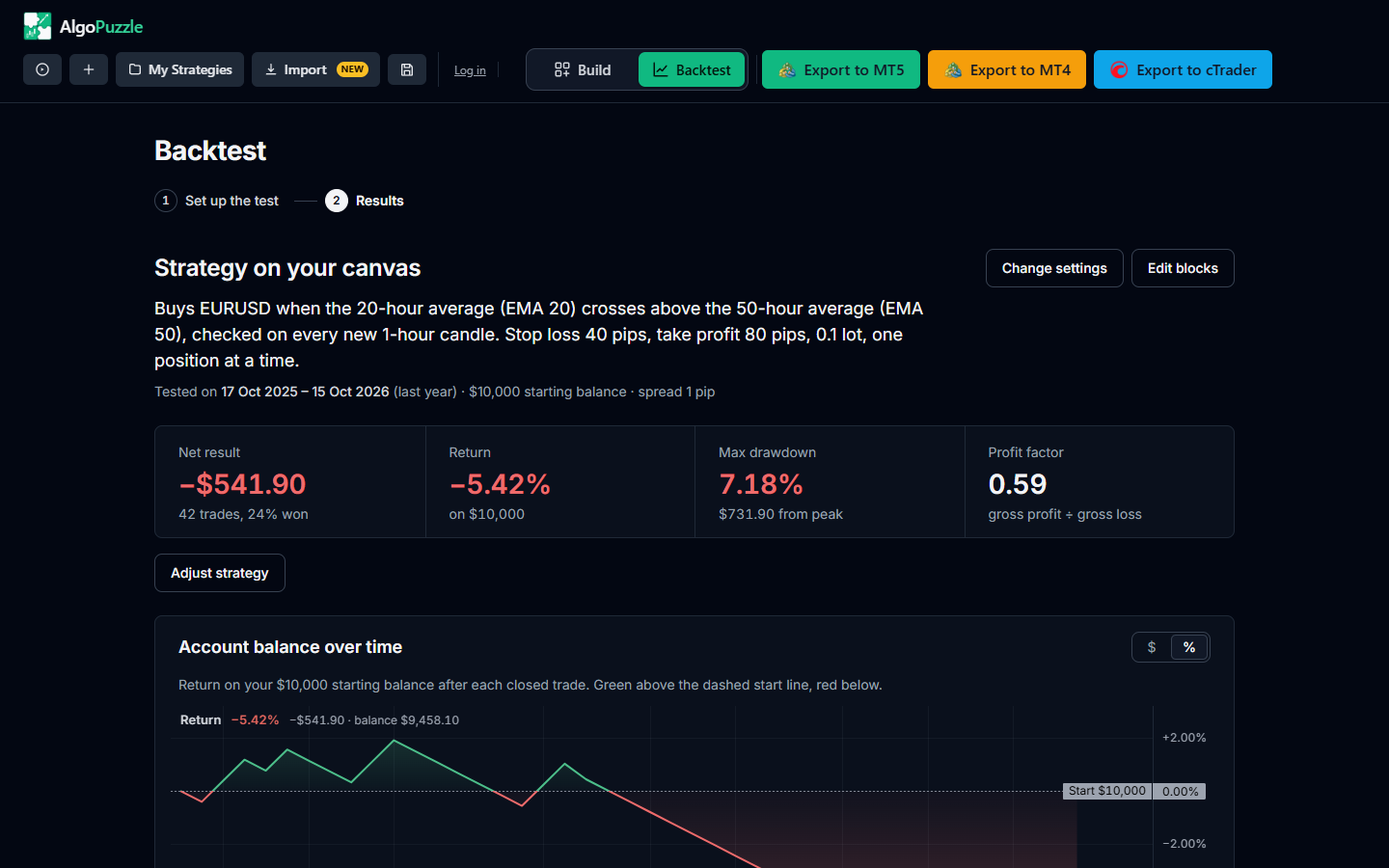
From top to bottom, the Results step contains:
- The strategy's name, the plain-English description of its rules, and a line with the tested dates, the starting balance, the spread and any commission (for example Tested on ... (last 3 months)).
- The four headline numbers.
- Adjust strategy, to try other values without touching the canvas.
- Account balance over time, the balance chart.
- A one-sentence summary of the result, a line on how the simulation was done, and any important warning.
- Where the strategy traded, the price chart with every trade.
- Three tabs: Trades, Monte Carlo and Details.
Two buttons at the top, Change settings and Edit blocks, take you back to the test setup or to the canvas.
The headline numbers
| Number | What it means | Shown with it |
|---|---|---|
| Net result | Total profit minus total loss of all closed trades in dollars, after spread and commission. | The number of trades and the share of them that won. |
| Return | The net result as a percentage of the starting balance. A $500 net result on $10,000 is +5%. | The starting balance it is measured on. |
| Max drawdown | The largest drop of the account balance from a previous high point, as a percentage of that high point. It is the worst losing stretch you would have had to sit through. Read more in what drawdown is. | The same drop in dollars, "from peak". |
| Profit factor | Gross profit divided by gross loss. Above 1 the winners added up to more than the losers; 2 means twice as much was won as lost. It shows "∞" when there were no losing trades. Read more in what profit factor is. | The formula, gross profit ÷ gross loss. |
Green values are gains, red values are losses. After a change in Adjust strategy, each headline number that changed also shows what it was before.
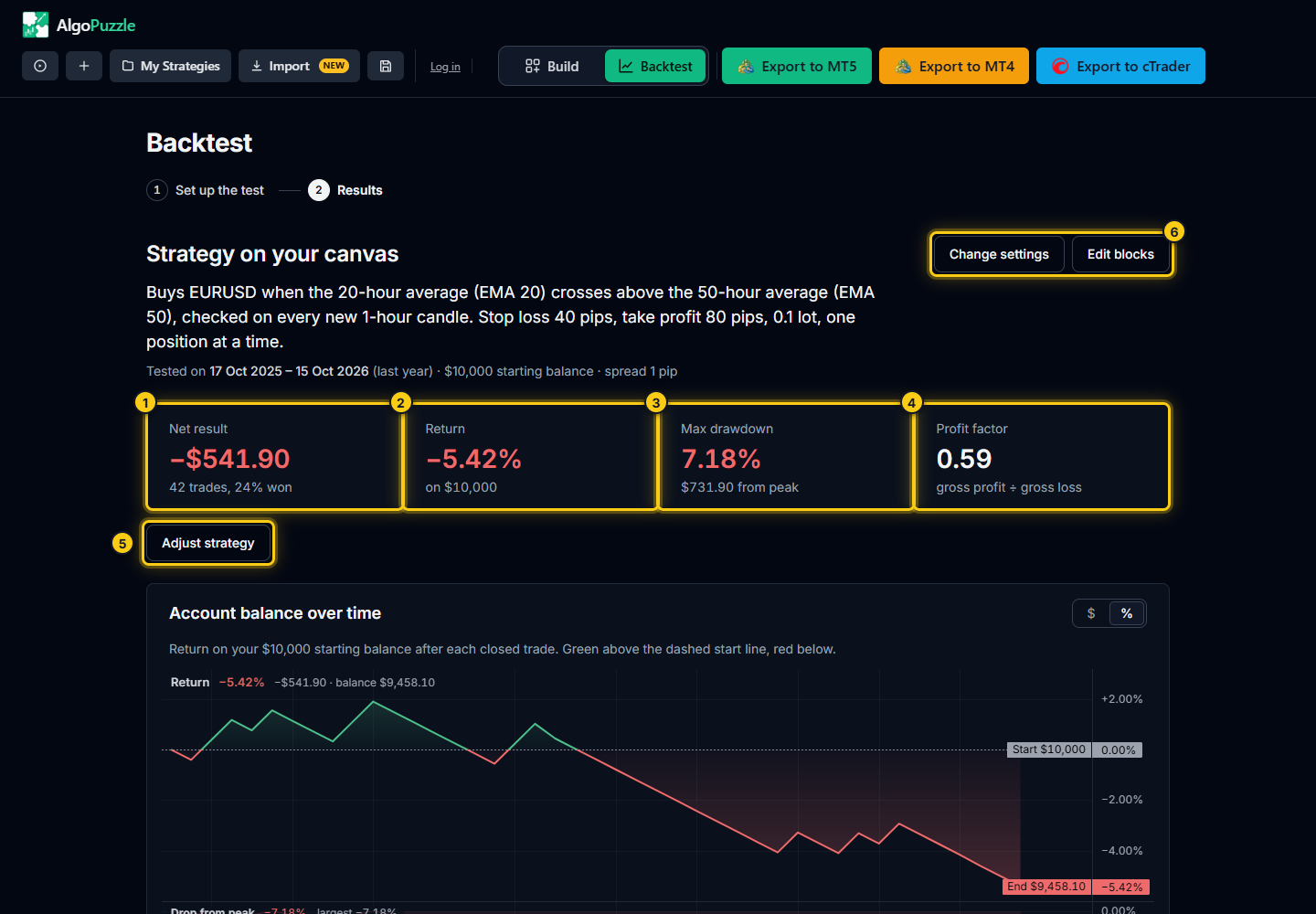
- Net result, number of trades and the share won.
- Return on the starting balance.
- Maximum drawdown.
- Profit factor.
- Adjust strategy.
- Change settings and Edit blocks.
More statistics in the Details tab
The Details tab lists the full set of statistics for the run:
| Statistic | Definition |
|---|---|
| Trades | The number of closed trades. |
| Won / lost | How many trades ended in profit and how many in loss. |
| Win rate | Winning trades as a percentage of all trades. On its own it says little: a strategy can win 80% of the time and still lose money if the losses are larger than the wins. |
| Net result | As above. |
| Average win / Average loss | The average profit of a winning trade and the average loss of a losing trade, in dollars. |
| Expectancy per trade | The average result per trade: net result divided by the number of trades. See trade expectancy explained. |
| Max drawdown | The largest drop from a peak, in dollars. |
| Longest losing streak | The most losing trades in a row. |
| Long trades | The share of trades that were buys. |
| Return, Profit factor | As above. |
Under Data and assumptions the same tab lists the market and timeframe, the exact period in UTC, from when indicators were warmed up (no trades are opened before the period), the spread used in pips and points, and the commission. Verify in MetaTrader is a reminder to confirm the strategy in MetaTrader's Strategy Tester on the same symbol, timeframe and dates.
The summary sentence
Under the balance chart, one sentence sums up the run: whether the strategy made money, lost money or broke even over the period, by how much, across how many trades, and the deepest drop from a peak. When the profit factor is below 1.2 the sentence says the gain was only slight. The line after it repeats how the result was simulated (one-minute data and the spread used) and that results at your broker will differ.
The balance chart
Account balance over time draws the balance after each closed trade. The $ / % switch shows it in dollars or as a return on the starting balance (the default). The dashed line is the starting balance: the curve is green above it and red below it.
Look at the shape, not only the end point. A steady rise with shallow dips is very different from a curve that was flat or falling for most of the period and was saved by one or two large trades. Clicking a trade on the balance chart selects it in the trades list and on the price chart.
When the backtest has enough trades for a Monte Carlo analysis, a line under the balance chart repeats its key number (the max drawdown reached in 1 run out of 20) with an Open Monte Carlo button, and Show Monte Carlo range draws the range of runs onto the balance chart. See Monte Carlo analysis.
The price chart: where the strategy traded
Where the strategy traded shows the market's candles for the tested period with every trade on top. The key above the chart explains the markers:
- ▲ a buy entry and ▼ a sell entry;
- ● an exit, green for a profit and red for a loss;
- shaded zones for the take profit and stop loss of a trade;
- the indicator lines your rules use; oscillators such as RSI are drawn in a lower panel.
Hover a trade to see its stop loss and take profit. Times on the chart are in UTC. When a strategy trades several markets, buttons above the chart switch between them.
Showing a single trade
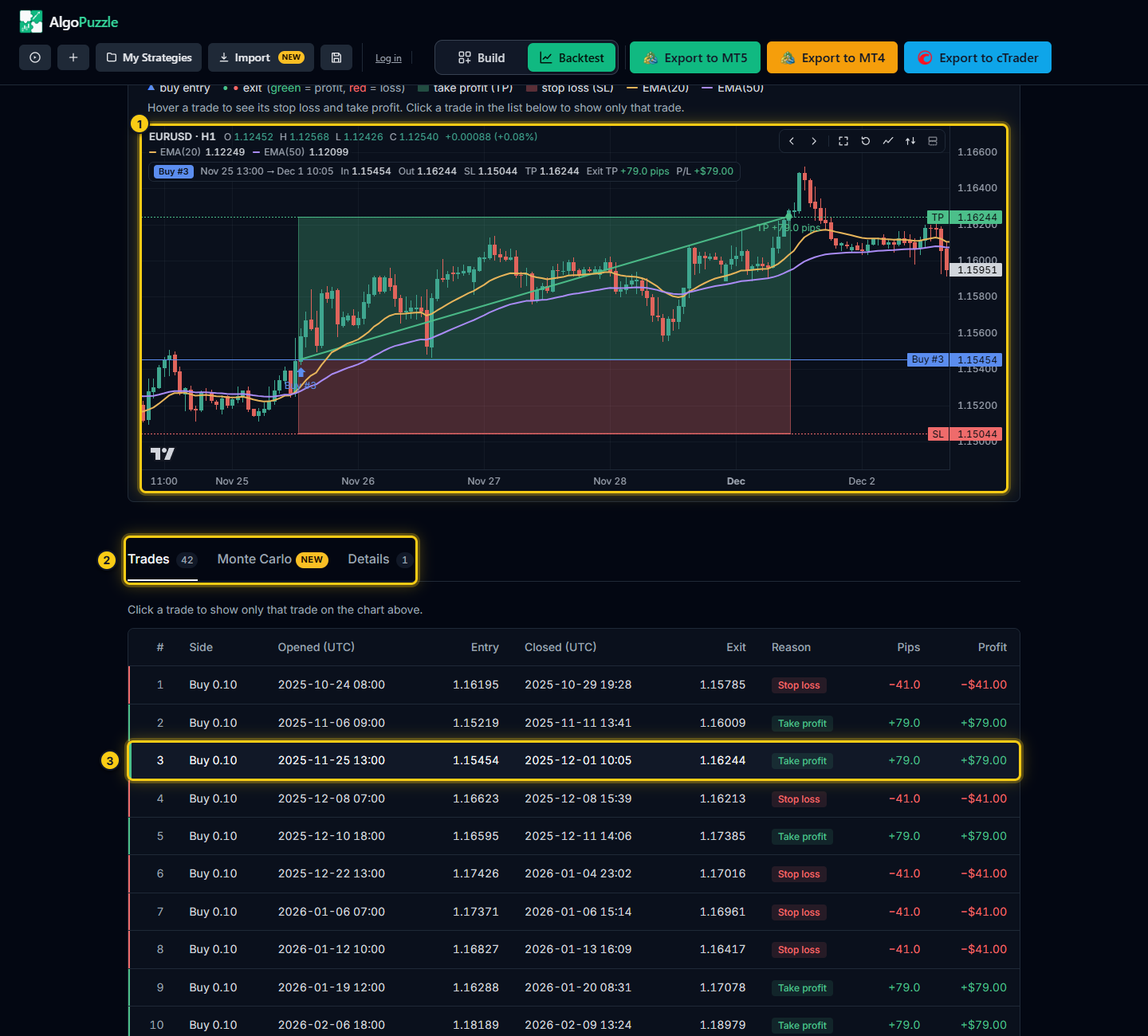
- The price chart shows the selected trade with its entry, stop loss and take profit.
- The Trades, Monte Carlo and Details tabs.
- The trade you clicked.
- Click a trade in the Trades list (or a trade on the chart).
- The price chart scrolls into view and shows only that trade. A bar above the chart names it: Trade #, the market and side, the profit and why it closed.
- Step through trades with Prev and Next.
- Press Show all trades (or Esc) to see every trade again.
Looking at the worst losing trades one by one is one of the fastest ways to understand a strategy: you can see whether the stop loss was simply too tight, whether entries came at the end of a move, or whether the exit rule closed trades too early.
The trades list
The Trades tab (with the number of trades next to it) lists every closed trade, 20 per page, with Previous and Next to page through. Winning rows are marked green and losing rows red.
| Column | What it shows |
|---|---|
| # | The trade number, in the order the trades opened. |
| Market | The market of the trade. Shown only when the strategy trades several markets. |
| Side | Buy or Sell, with the lot size. |
| Opened (UTC) | Date and time the trade opened, in UTC. |
| Entry | The entry price. |
| Closed (UTC) | Date and time the trade closed, in UTC. |
| Exit | The exit price. |
| Reason | Why it closed: Take profit, Stop loss, Exit rule (the CLOSE IF condition) or End of test (still open when the period ended). A trailing stop or break-even closes a trade as a stop loss. |
| Pips | The price move of the trade in pips, plus for a gain and minus for a loss. |
| Profit | The result of the trade in dollars, after spread and commission. |
On narrow screens some columns are hidden to keep the list readable. If the strategy opened no trades, the list says The rule never fired in this period, so there are no trades to show. (see The rule never fired).
Notes and warnings
Some things make a result less certain without making it wrong. The Details tab shows a count next to its name when there are notes, and lists them under Notes on this run. The most serious ones (too few trades, a spread below what the market normally has) are also shown in a highlighted line under the summary.
| Note | What it means for you |
|---|---|
| Only a few trades, "not statistically meaningful" | Fewer than 30 trades. The result could easily be luck; test a longer period or a lower timeframe. |
| Both stop loss and take profit inside one minute, "assumed SL first" | For those trades the backtest could not tell which came first and counted a loss. Real results on them could be better. |
| Positions still open at the end of the window | Closed at the last price, marked End of test. |
| Indicators had too little history | At the very start of the available history, no signals were taken until indicators had enough data. |
| Start moved to the first available data | The period started before the history does, so the test starts later than you chose. |
| Abnormal spreads capped | A few minutes in the historical data had unusually wide spreads; they were limited to 10 times the typical spread. |
| Spread below the typical real spread, "results are optimistic" | You entered a spread lower than the market normally has. Use a realistic value. |
| Trailing stop tighter than the spread | Brokers usually reject stops that close to the price; the result for those trades is not reliable. |
| Trailing stop narrower than one-minute price swings | The stop was moved only at minute opens and closes there. Live results can differ a lot; confirm in MetaTrader's Strategy Tester with Every tick based on real ticks. See Trailing stop and break-even. |
| Risk %: lot below the 0.01 minimum | The calculated lot was too small, so 0.01 was traded, which risks more than the percentage you set. |
| Risk %: entries skipped | Those entries had no stop loss distance to size the lot from. |
| Lot sizes rounded to the 0.01 lot step | Calculated lots were rounded, as a broker would do. |
Adjust strategy and Apply to canvas
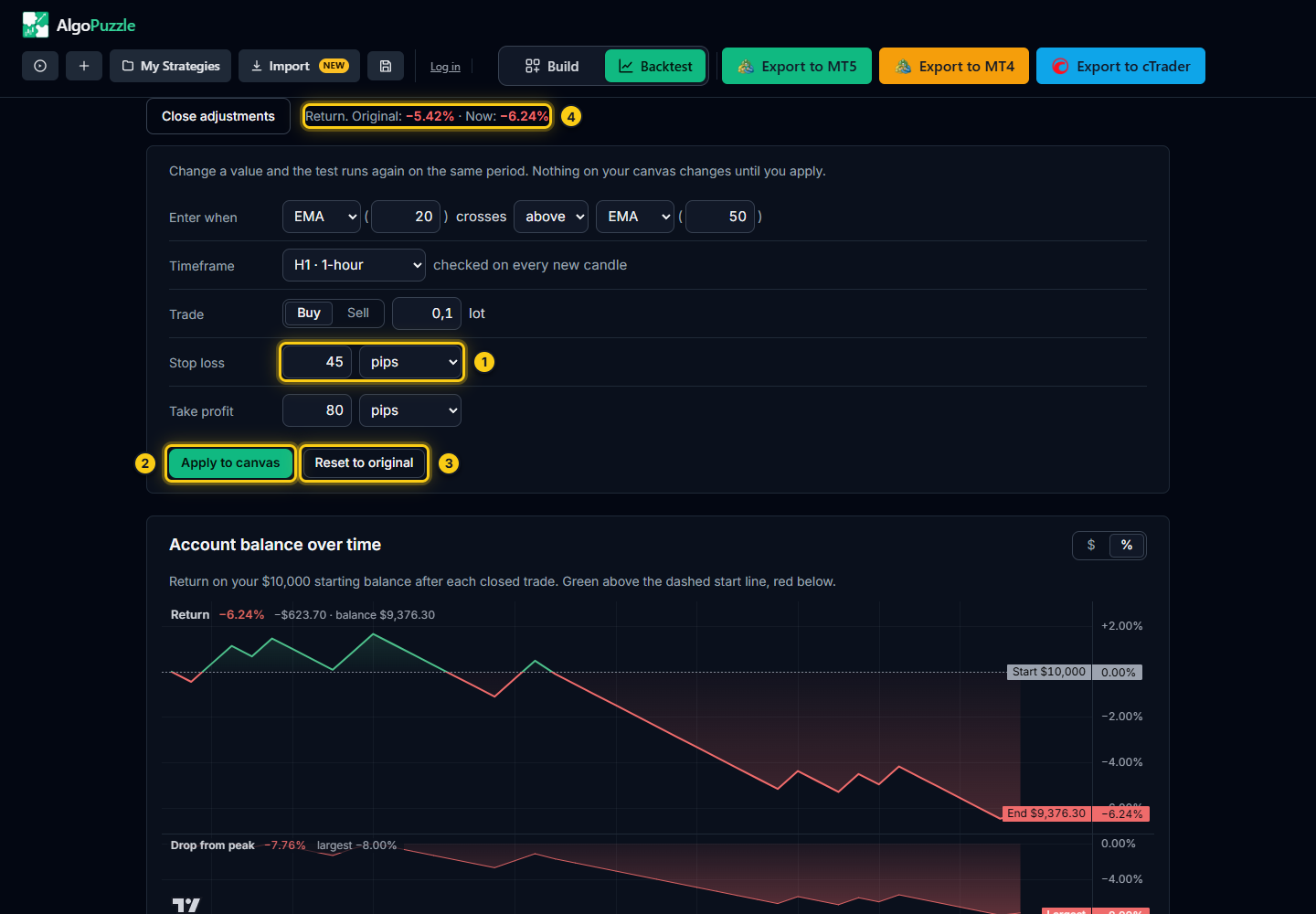
- A changed value (stop loss 40 to 45 pips) - the test reruns at once.
- Apply to canvas writes the change into your blocks.
- Reset to original.
- The original and the new result side by side.
Adjust strategy opens a compact version of your strategy in which the numbers and choices can be edited directly: indicator periods and moving average types, the comparison (is above, is below and so on), cross direction, rising or falling and the number of bars, plain numbers, the timeframe, Buy or Sell, the lot size or risk %, the stop loss and take profit (with a switch between pips and % of price where the block allows it), and trailing stop and break-even distances.
- Click Adjust strategy under the headline numbers.
- Change a value. The test runs again on the same period and settings within a moment; the headline numbers update and show what they was before, and the bar shows Return. Original: ... Now: .... The result title is marked Edited, not applied.
- If a value is outside its allowed range, a message says which range to use (for example indicator periods are whole numbers from 1 to 500, and a MACD fast period must be smaller than its slow period).
- To keep the changes, click Apply to canvas. The values are written into the blocks they came from, the builder returns to the canvas and a message confirms how many changes were applied, with an Undo button. Ctrl+Z also undoes it.
- To go back to the values on your canvas, click Reset to original. Close adjustments hides the panel.
Nothing on your canvas changes until you click Apply to canvas. If you edit the blocks on the canvas in the meantime, the edited values can no longer be matched to them; run the test again, then apply.
Careful.Adjust strategy makes it very easy to try dozens of values until one looks great on this one period. That is exactly how overfitting happens. Prefer round, sensible values that work across a range, and check them on another period before you trust them.
How to judge a result sensibly
A backtest cannot tell you that a strategy will make money. What it can do is rule out strategies that clearly do not work, and show you how a strategy behaves. A few habits help:
- Count the trades. Ten trades prove nothing either way. Aim for at least 30, and more is better. If there are too few, test a longer period or a lower timeframe.
- Read drawdown next to return. A 20% return with a 25% max drawdown means you would have watched a quarter of the account disappear on the way. Ask whether you could sit through that drawdown with real money, and size the risk for a deeper one, because the future rarely repeats the best case. Monte Carlo analysis shows how much deeper it could have been.
- Never read win rate alone. Look at it together with profit factor and the average win and loss.
- Check costs. Rerun with a wider spread or a commission. If a small cost increase wipes out the result, the edge is thin.
- Check other periods. Run the same strategy on 1M, 3M, 6M and 1Y. A strategy that only works in one window is fragile.
- Inspect the trades. If one or two trades made all the profit, the result depends on rare events.
- Prefer simple rules. Each extra condition fitted to the past makes the backtest look better and the future less certain.
Then confirm the strategy in MetaTrader's Strategy Tester and run it on a demo account. See Limits of a backtest and Export to MT5, MT4, cTrader.
Frequently asked questions
What is a good profit factor?
Above 1 means the winning trades added up to more than the losing ones. There is no universal good value: a profit factor from a handful of trades means little, and a high one on one short period can be luck or overfitting. Read it together with the number of trades and the max drawdown.
What does max drawdown mean in the backtest?
It is the largest drop of the account balance from a previous high point during the test, shown as a percentage of that high point and in dollars. It is the worst losing stretch you would have had to sit through.
Why is the win rate high but the result negative?
Because the losing trades were larger than the winning ones. Compare the average win and average loss in the Details tab, and look at the profit factor.
Does Adjust strategy change my blocks?
Not until you click Apply to canvas. Until then every change is only tested. Apply to canvas writes the values into the existing blocks and can be undone with the Undo button or Ctrl+Z.
What time zone are the trade times in?
The trades list and the charts show times in UTC.
Risk notice.Trading leveraged products carries a high risk of loss. Backtest results are hypothetical and do not guarantee future results. Always test a strategy on a demo account before trading real money. See the risk disclosure.
Can't find what you need? Email support@algopuzzle.com.