The Builder Screen: Buttons, Block Drawers and Shortcuts
A tour of everything you see in the AlgoPuzzle builder: the buttons in the header, the toolbox with its block drawers, the canvas where the strategy is built, and the Next step bar that tells you what is still missing.
Last updated
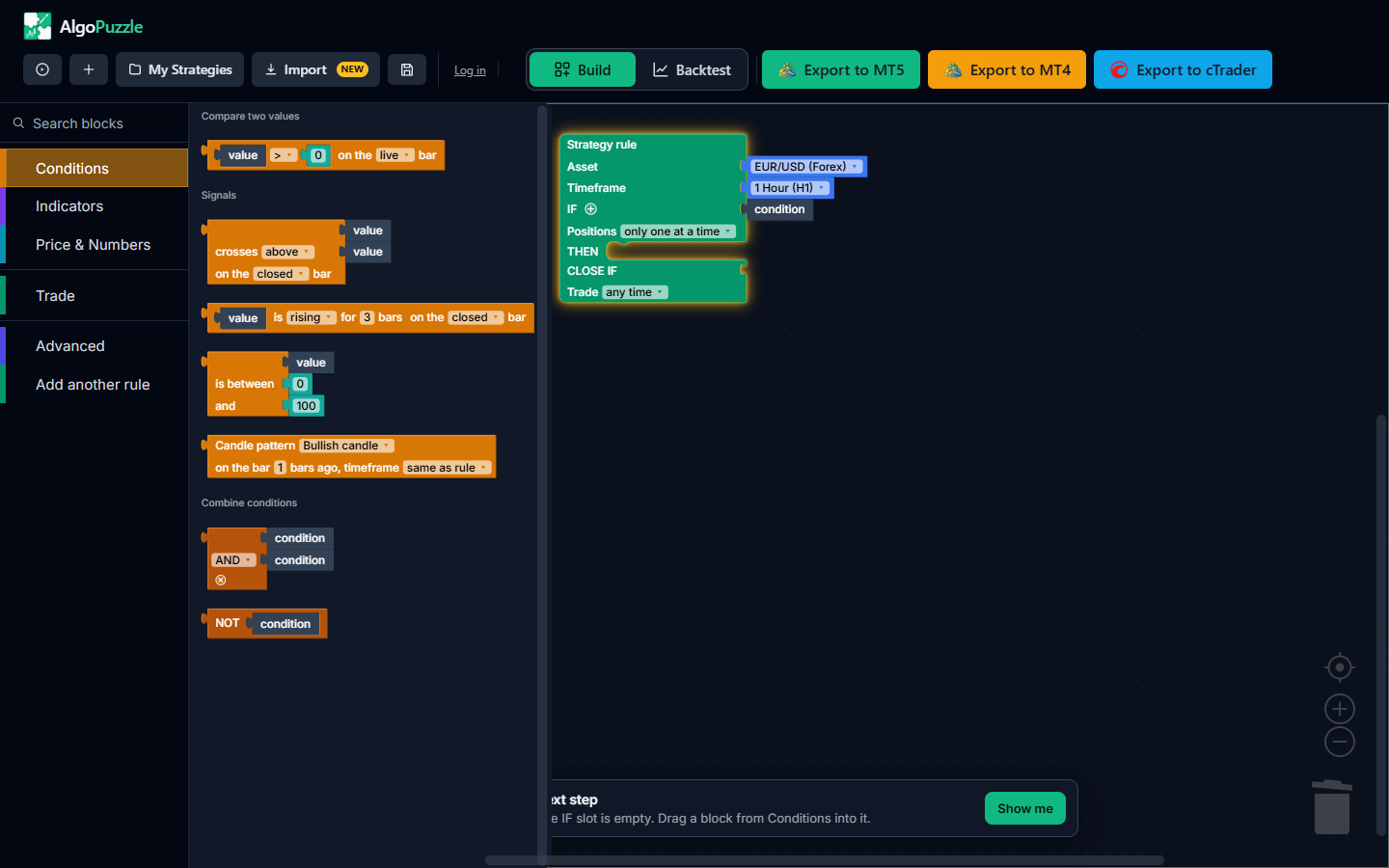
The AlgoPuzzle builder has four areas. The header holds How to run?, New, My Strategies, Import, Save, Log in, the Build | Backtest switch and the three export buttons. The toolbox on the left has a Search blocks field and six drawers: Conditions, Indicators, Price & Numbers, Trade, Advanced and Add another rule. The canvas in the middle holds your strategy rules, and the Next step bar at the bottom says what is missing, with a Show me button that points at it. Your canvas is kept automatically in your browser between visits.
The layout at a glance
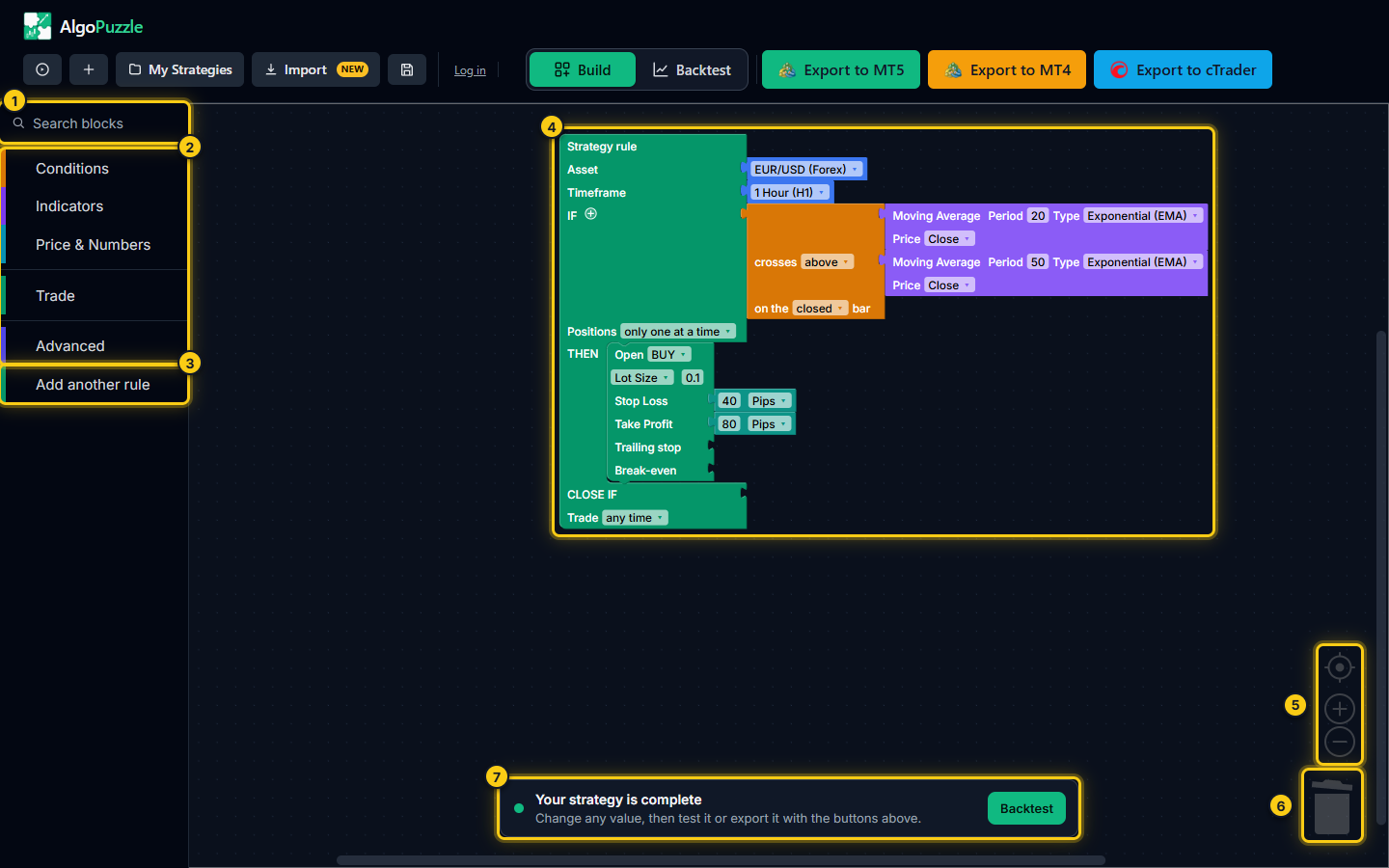
- Search blocks.
- The block drawers.
- Add another rule.
- The canvas with your strategy.
- Center, zoom in and zoom out.
- The bin: drop a block here to delete it.
- The Next step bar.
- Header (top): start, open, import and save strategies, log in, switch between building and backtesting, and export.
- Toolbox (left): the search field and the drawers you drag blocks from.
- Canvas (middle): your strategy. It can hold one or more Strategy rules.
- Next step bar (bottom): a live check of the strategy.
Header buttons
From left to right, the header has these buttons. On a phone most of them show only their icon.

- How to run?
- New - starting points.
- My Strategies.
- Import.
- Save.
- Log in.
- The Build | Backtest switch.
- The three export buttons.
| Button | What it does |
|---|---|
| How to run? | Opens "How to run your strategy?" with video walkthroughs for installing a strategy on MetaTrader 5 and MetaTrader 4. Every export also contains a README.txt with the same steps in writing, including the cTrader steps. |
| New | Opens "Start from a working strategy": five ready-made starting points (RSI oversold, Moving average crossover, Breakout, Bollinger band, Trend + pullback) and Start from scratch for an empty rule. Not now closes it. If the canvas has unsaved changes, the builder asks before replacing them. |
| My Strategies | Opens your list of strategies, with a Saved tab for the ones you saved and a Purchases tab for strategies bought in the Strategy of the Week marketplace. See Account and saved strategies. |
| Import | Brings in a strategy made elsewhere: an Expert Advisor file or pasted MQL or cTrader code. It is turned into normal blocks you can edit, backtest and export. See Import a strategy. |
| Save | Asks for a name ("Name this strategy:") and saves the canvas under it. If you opened a saved strategy, its name is filled in and Save updates it. |
| Log in | Opens the log-in window, which also lets you create a free account. Once you are logged in, your email address and Log out appear in its place. |
| Build | Backtest | Switches between the canvas and the backtest of the strategy on it. The canvas is only hidden while you backtest, never changed. See Running a backtest. |
| Export to MT5 | Downloads a .zip with a MetaTrader 5 Expert Advisor (.mq5) and installation steps. |
| Export to MT4 | Downloads a .zip with a MetaTrader 4 Expert Advisor (.mq4) and installation steps. |
| Export to cTrader | Downloads a .zip with a cTrader cBot (.cs) and installation steps. |
Exporting needs a free account: if you are logged out, the log-in window opens and the export continues once you are in. On an empty canvas the export buttons open the starting points instead, and on an incomplete strategy they show what is missing. Platform details are in Export to MT5, MT4, cTrader.
The toolbox
The toolbox on the left is where blocks come from. Click a drawer to open a panel of blocks next to it, then drag the block you want onto the canvas or straight into a slot of a rule. Click the drawer again, or click the canvas, to close the panel.
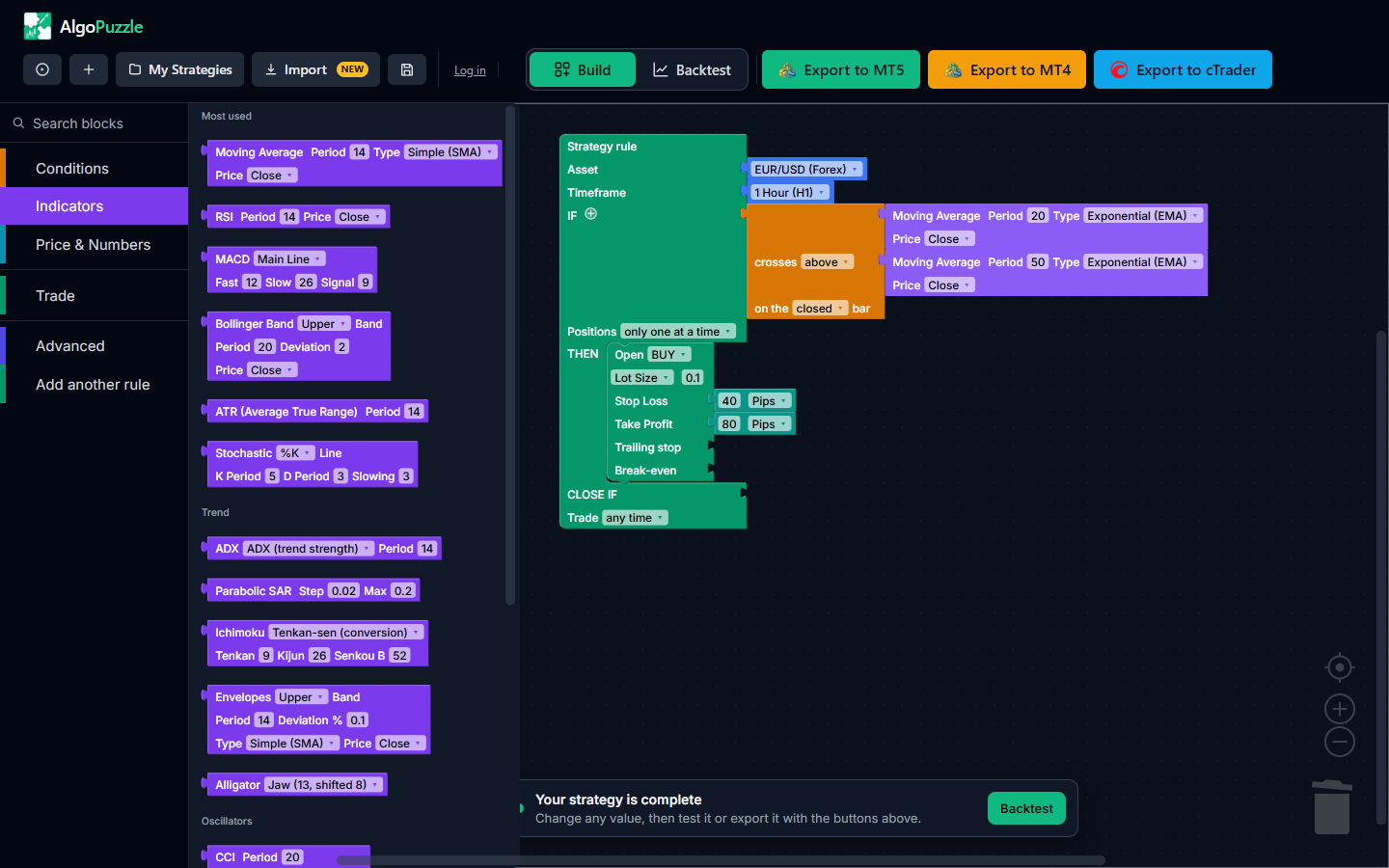
Search blocks
The Search blocks field at the top of the toolbox finds blocks by name or by common trading words. Type ema, bollinger, stop loss, engulfing or higher timeframe and the matching blocks appear in the panel, ready to drag. Up to twelve results are shown; add a second word to narrow them down. Press Esc to clear the search, or click a drawer to leave it.
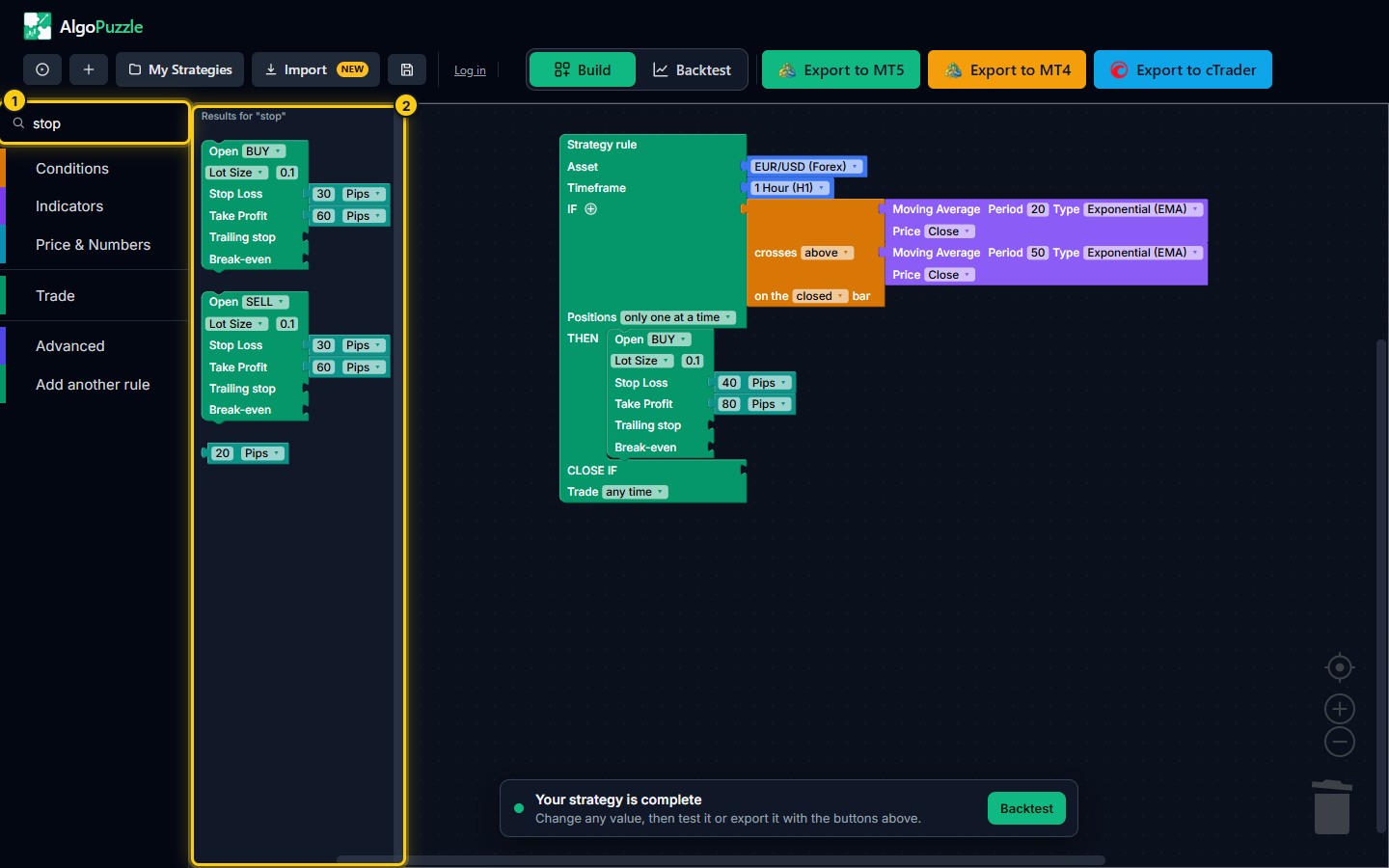
- Type part of a block name, here "stop".
- Every matching block, ready to drag onto the canvas.
The six drawers
| Drawer | What is inside | Read more |
|---|---|---|
| Conditions | Compare two values (>, <, ≥, ≤, =); signals: crosses above / below, is rising / falling for N bars, is between, Candle pattern; combine conditions: AND / OR, NOT. | Conditions |
| Indicators | Most used: Moving Average, RSI, MACD, Bollinger Band, ATR, Stochastic. Trend: ADX, Parabolic SAR, Ichimoku, Envelopes, Alligator. Oscillators: CCI, Williams %R, Momentum, DeMarker, Bulls / Bears Power, Awesome / Accelerator Oscillator. Volatility & volume: Standard Deviation, Money Flow Index. | Indicators and values |
| Price & Numbers | Price: Candle Data (current price or the previous candle's open, close, high or low) and Highest High / Lowest Low of the last N closed bars. Numbers: a plain number and a distance in pips. Market: Volume and Current Spread (pips). | Indicators and values |
| Trade | Open a position: Open BUY and Open SELL (with lot, stop loss and take profit). Stop loss / take profit size in Pips, % of Entry Price or Raw Price Distance. Manage open trades: trailing stop and break-even. | Trades, stops and lot size |
| Advanced | Read a value differently: as of N bars ago and on <timeframe>. Math: multiply, add, subtract or divide two values, and absolute value of. | Indicators and values |
| Add another rule | An extra, empty Strategy rule, for example a sell rule next to a buy rule. | Strategy rules |
Blocks leave the toolbox with sensible numbers already filled in, so they are valid the moment they land and you only change values. Slots for indicators and prices are left empty on purpose and show a grey value placeholder, so the builder never suggests what to trade.
Each drawer has its own colour, and the blocks keep it on the canvas: orange for conditions, purple for indicators, blue-green for prices and numbers, green for rules and trades, and indigo for the Advanced blocks.
The canvas
The canvas is where the strategy lives. Blocks are shaped like puzzle pieces and only fit where they make sense: a condition fits into IF, a trade into THEN, a value into a value slot.
Placing and moving blocks
- Drop into a slot. Drag a block over an empty slot until it lights up, then let go. Dropping a block on a grey value or condition placeholder replaces the placeholder.
- Move a block. Drag it by its label. Moving a block moves everything plugged into it. To take a block out of a slot, drag it away; the slot goes back to its placeholder.
- Move the canvas. Drag an empty part of the canvas, or use the scrollbars.
- Loose blocks. Blocks that are not inside a Strategy rule are ignored. The Next step bar tells you how many loose blocks there are.
Editing numbers and dropdowns
Click any number on a block to type a new one, and click any dropdown to pick another option: the comparison sign, the indicator line, the moving average type, the stop loss unit and so on. The Asset list is searchable: start typing a market name. Some choices change the block's shape: picking allow multiple at once adds a Max at once field, and only at set times adds hours and weekday boxes. The Asset and Timeframe of a rule can be changed but not removed.
Zoom
Turn the mouse wheel over the canvas to zoom in and out. The round buttons in the bottom-right corner zoom in (+), zoom out (-) and reset the view to the normal size, centred on your blocks. On a touch screen, pinch to zoom.
Delete, undo and the bin
- Delete a block: click it and press Delete or Backspace, drag it onto the bin in the bottom-right corner, or right-click it and choose Delete Block. Deleting a block also deletes the blocks plugged into it.
- Get a deleted block back: press Ctrl+Z, or click the bin to see recently deleted blocks and drag one back onto the canvas.
- Remove a stop loss or take profit: drag its block out of the Stop Loss or Take Profit slot and delete it. An empty slot means no stop loss or no take profit for that trade.
Right-click menu
Right-click a block for Duplicate (a copy of the block and everything inside it, handy for turning a buy rule into a sell rule) and Delete Block. Right-click an empty part of the canvas for Undo, Redo and Clean up Blocks, which lines up the top-level blocks neatly.
The Next step bar
The bar at the bottom of the canvas checks your strategy after every change. It runs the same check as the backtest and the export, so it never disagrees with them.
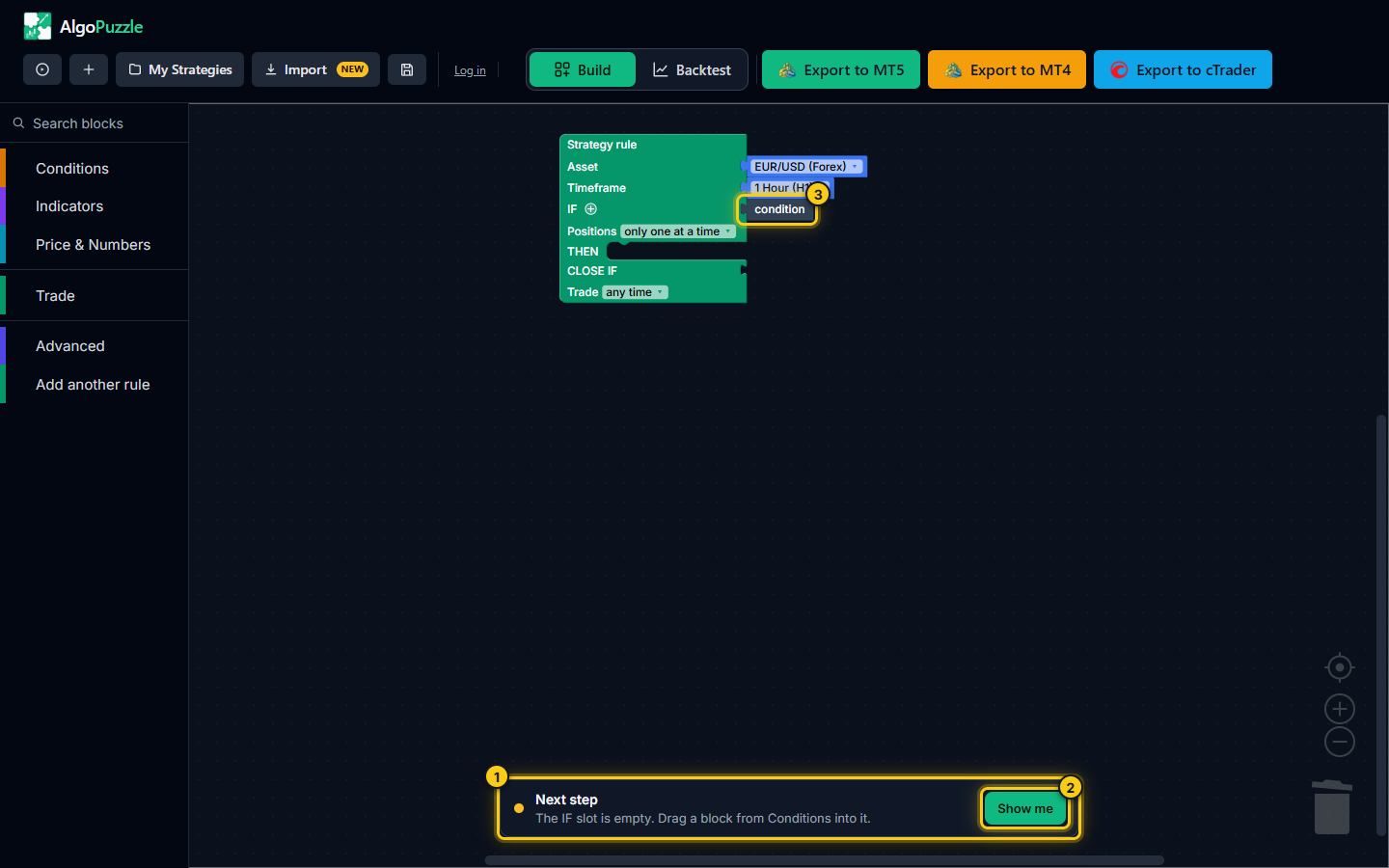
- What is still missing.
- Show me.
- The empty slot it refers to.
- Next step names the first problem, for example "The IF slot is empty. Drag a block from Conditions into it." or "This condition has an empty slot. Fill it with a value from Indicators or Price & Numbers." With more than one rule, the message starts with the rule's number (Rule 1, Rule 2).
- Show me highlights the block with the problem, brings it into view if needed, and opens the drawer the missing piece comes from. For an empty value slot it shows the Indicators and Price & Numbers blocks side by side, because either can fill it.
- +N more appears when there are several problems and lists all of them; click one to jump to it.
- Warning icons appear on individual blocks that have a problem of their own, such as an indicator with impossible settings. Click the icon to read the message.
- Your strategy is complete appears when nothing is missing, with a Backtest button that switches straight to the backtest.
When there is no rule on the canvas at all, Show me opens the starting points.
Messages when a block does not fit
The builder stops comparisons that make no sense, such as a price against a volume. A block of the wrong kind either does not snap in, or is pushed back out with a short message at the bottom of the screen, for example "Can't compare a price value to a volume value - different units." The rules are explained in Conditions: comparing values of the same kind.
Keyboard and mouse shortcuts
| Action | Shortcut |
|---|---|
| Delete the selected block | Delete or Backspace, or drag it onto the bin |
| Undo | Ctrl+Z (Cmd+Z on a Mac) |
| Redo | Ctrl+Shift+Z or Ctrl+Y |
| Copy and paste the selected block | Ctrl+C, then Ctrl+V |
| Duplicate a block | Right-click, Duplicate |
| Zoom | Mouse wheel over the canvas, or the zoom buttons |
| Move the canvas | Drag an empty part of it |
| Edit a number or dropdown | Click it |
| Clear the block search | Esc in the Search blocks field |
| Close an open window (starting points, My Strategies) | Esc |
Using the builder on a phone or tablet
The builder works on touch screens, with a few differences:
- The header buttons show only their icons to save space.
- The toolbox is hidden behind the Blocks button in the header. Tap it to show the drawers, tap a drawer, then drag a block onto the canvas. Show me on the Next step bar opens the right drawer for you.
- On a phone the canvas starts zoomed out so a whole rule fits on the screen. Pinch to zoom in on a block before editing it.
- Tap a number or dropdown to edit it, exactly as you would click it on a computer.
For building larger strategies a computer is more comfortable, but everything, including the backtest and the export, works on mobile too.
Autosave in your browser
The builder keeps your canvas automatically in the browser you are using, a moment after every change and when you close the tab. When you come back, your last draft is on the canvas and the header briefly shows "Restored your last draft".
- Autosave keeps one draft: the canvas as you left it. To keep several strategies, give each a name with Save and open them later from My Strategies.
- The draft lives in this browser on this device. A different browser, a private window, or clearing your browser's site data starts with an empty canvas.
- Before New or opening a saved strategy replaces a canvas with unsaved changes, the builder asks: "You have unsaved changes. Start a new strategy anyway?"
Saving, My Strategies and your account are covered in Account and saved strategies.
Frequently asked questions
Where did my strategy go when I reopened the builder?
The builder restores the last draft from the same browser on the same device. If you used a different browser, a private window, or cleared your browser's site data, the draft is not there. Strategies you named with Save are listed under My Strategies in the browser where you saved them.
How do I find a block quickly?
Type its name or a common trading word into Search blocks at the top of the toolbox, for example ema, stop loss, bollinger or engulfing. The matching blocks appear in a panel and can be dragged straight onto the canvas.
I deleted a block by mistake. How do I get it back?
Press Ctrl+Z (Cmd+Z on a Mac) to undo, or click the bin in the bottom-right corner of the canvas and drag the block back out of the list of recently deleted blocks.
Why won't a block snap into a slot?
Each slot only takes blocks of the right type: IF takes a condition, THEN takes Open BUY or Open SELL, and a comparison only takes two values of the same kind, such as two prices or an oscillator and a number. If a block is the wrong kind, it does not snap in or is pushed back out with a short message explaining why.
Can I use AlgoPuzzle on my phone?
Yes. On a phone the toolbox is behind the Blocks button in the header and the canvas starts zoomed out so a whole rule fits. Building, backtesting and exporting all work, although a computer is more comfortable for larger strategies.
Can't find a button or a block? Email support@algopuzzle.com.