Account and saved strategies
What works without an account, what a free account adds, how to sign up, log in and reset your password, and where your strategies and purchases are kept.
Last updated
You can build strategies in AlgoPuzzle without an account. A free account (email and password, no card) is needed to export to MetaTrader 5, MetaTrader 4 or cTrader, to load backtest data, to import a strategy and to download or buy Strategy of the Week strategies. Save stores the strategy on the canvas under a name in My Strategies, and the canvas itself is kept automatically between visits. Saved strategies and the canvas are kept in the browser you use; marketplace purchases are tied to your account and follow you to any device.
What needs an account
Using the builder is open to everyone. A free account is only needed for the steps that create files or load data on your behalf.
| Feature | Account needed? |
|---|---|
| Building a strategy on the canvas, starting points from New, block search | No |
| Save, My Strategies (saved strategies), the canvas kept between visits | No |
| Exporting with Export to MT5, Export to MT4 or Export to cTrader | Yes, a free account |
| Running a backtest (loading the market data) | Yes, a free account |
| Importing a strategy from a file or code | Yes, a free account |
| Downloading the free Strategy of the Week, buying a paid one, My Purchases | Yes, a free account |
Building, backtesting and exporting are free, with no limit on exports. An account costs nothing and needs no card. Individual Strategy of the Week strategies are paid; see the Strategy of the Week page for what is on offer.
You never have to create an account up front. When you press an export button, Run backtest or another action that needs one while logged out, the log-in window opens, and after you log in or sign up the action you started continues on its own.
Signing up
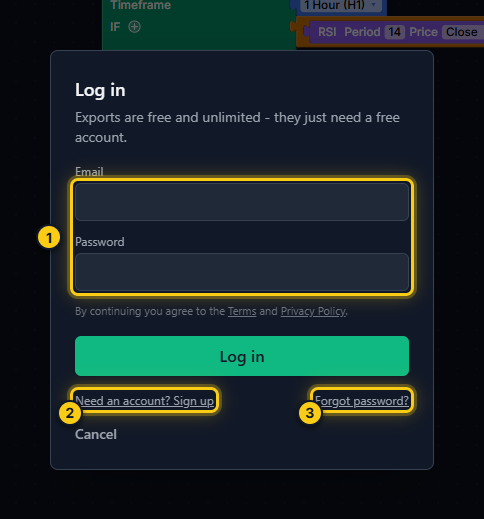
- Email and password.
- Need an account? Sign up.
- Forgot password?
- Click Log in at the top right of the builder, or start an action that needs an account.
- In the window that opens, click Need an account? Sign up.
- Enter your Email and choose a Password.
- Click Sign up. You are usually logged in straight away and the window confirms it with a short message. If the message asks you to confirm your email instead, open the link in that email and then log in.
By continuing you agree to the Terms and the Privacy Policy. Use an email address you can read: it is where password reset links and purchase receipts go.
Logging in and out
Click Log in in the builder header, enter your email and password, and click Log in. A message confirms which account you are logged in as. To log out, click Log out in the same place. On narrow screens these are small icon buttons in the header.
The Strategy of the Week, strategy detail and My Purchases pages use the same account and the same log-in window, so you only need one account for everything.
Resetting your password
- Open the log-in window and click Forgot password?.
- The window changes to Reset password. Enter your email and click Send reset link.
- Open the email and click the link. It opens the builder with a Set a new password window.
- Enter a New password and click Save new password. When it says Password updated - log in with your new password., log in as usual.
If the email does not arrive within a few minutes, check your spam folder, make sure the address is the one you signed up with, and try again. Back to log in returns to the log-in form.
Saving a strategy
- Click Save in the header.
- In Name this strategy:, keep the suggested name or type your own. If the strategy is already saved, its current name is filled in, so you can rename it here too.
- Confirm. A message says Saved as "...".
Saving again while the same strategy is open updates that saved copy rather than creating a new one. A strategy does not have to be complete to be saved, so you can keep unfinished ideas.
The canvas is kept between visits
Independently of Save, the builder keeps the canvas automatically as you work. Close the tab, come back later in the same browser, and your blocks are still there. This is a convenience, not a replacement for saving: starting something new with New or loading another strategy replaces the canvas. If the canvas has changes you have not saved, the builder asks first (You have unsaved changes. ... anyway? Unsaved changes will be lost.).
My Strategies
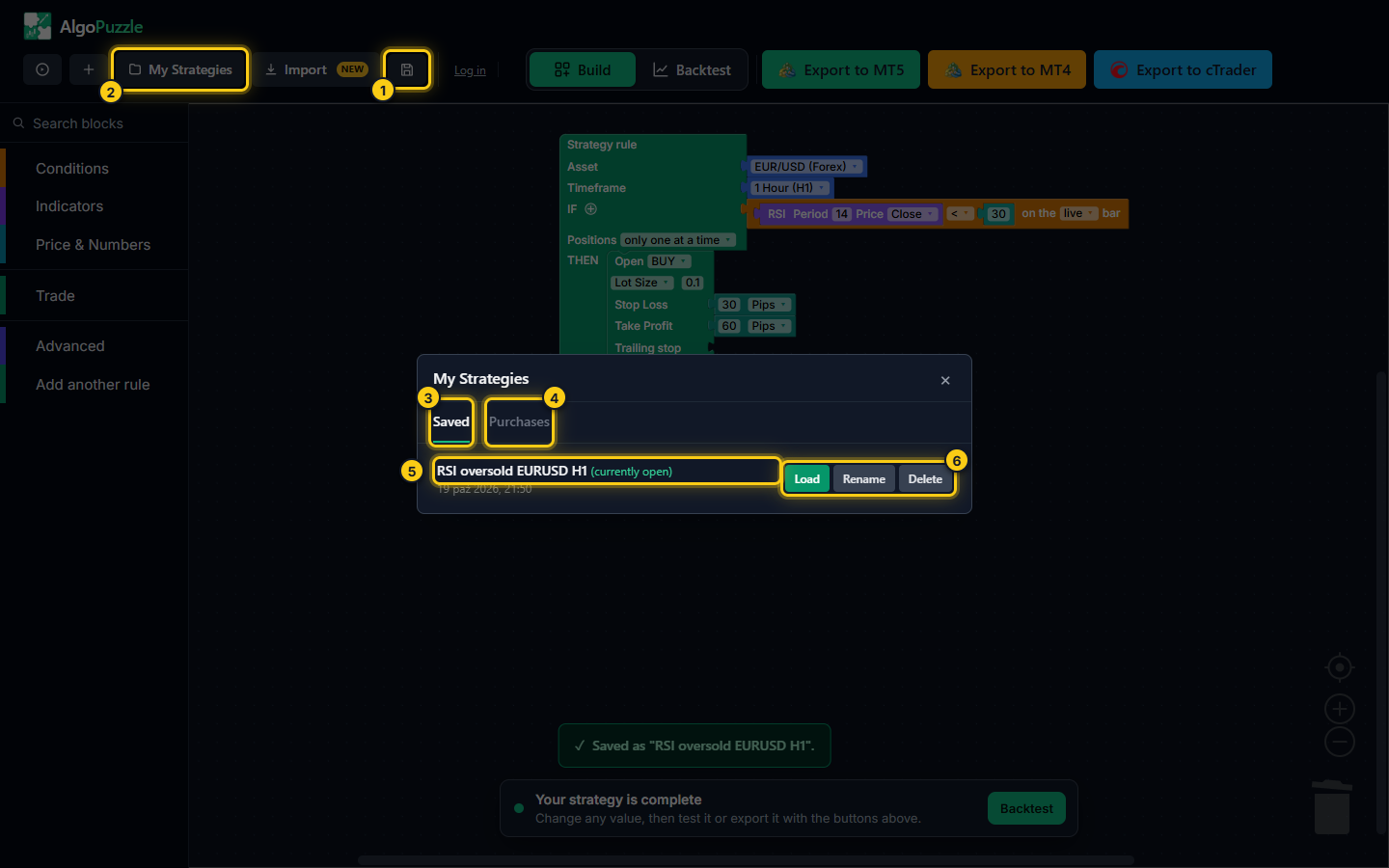
- Save.
- My Strategies.
- The Saved tab.
- The Purchases tab.
- A saved strategy.
- Load, Rename and Delete.
My Strategies in the header opens a window with two tabs.
Saved
The Saved tab lists your saved strategies, newest first, each with the date and time it was saved. The one on the canvas is marked (currently open). Each row has three buttons:
| Button | What it does |
|---|---|
| Load | Puts the strategy on the canvas, replacing what is there (you are asked first if the canvas has unsaved changes). |
| Rename | Changes the name without loading it. |
| Delete | Removes the saved strategy after a confirmation (Delete "..."? This can't be undone.). Deleting a saved copy does not clear the canvas. |
With nothing saved yet, the tab says No saved strategies yet. Build something and hit "Save" to keep it here.
Purchases
The Purchases tab lists the Strategy of the Week strategies your account has bought, with the return they were listed with. Load into Builder puts the strategy's blocks on the canvas so you can study it, backtest it, change it and export it; Details opens its page with the download buttons. Go to Marketplace leads to the Strategy of the Week page. If a purchased strategy does not load, make sure you are logged in to the account that bought it. More in Strategy of the Week.
Where your strategies are kept
Note.Saved strategies and the automatically kept canvas live in the browser on the device you use. They are not linked to your account, so they do not appear on another computer or in another browser, and clearing this site's data in your browser (or browsing in a private window) removes them. Purchases are different: they are tied to your account and follow you to any device once you log in.
To keep a copy of a strategy outside the browser, export it: the exported file is yours to keep and back up. To continue editing a strategy on another computer, build or load it in the browser you plan to keep using.
Privacy
Your account is your email address and a password. What AlgoPuzzle stores about you and your strategies, and why, is described in the Privacy Policy. You can ask for a copy of your data or for it to be deleted by emailing support@algopuzzle.com.
Frequently asked questions
Do I need an account to use AlgoPuzzle?
Not to build. Building and saving strategies work without an account. A free account (email and password, no card) is needed to export, to run a backtest, to import a strategy and to download or buy Strategy of the Week strategies.
Does an AlgoPuzzle account cost anything?
No. The account is free and needs no card. Building, backtesting and exporting are free; only individual Strategy of the Week strategies are paid.
I forgot my password. What do I do?
Open the log-in window, click Forgot password?, enter your email and click Send reset link. The email's link opens a Set a new password window; save the new password and log in.
Why are my saved strategies missing on another computer?
Saved strategies are kept in the browser where you saved them, not on your account. Export a strategy to keep a file copy. Purchases, in contrast, follow your account to any device.
Can I delete a saved strategy?
Yes. Open My Strategies, go to the Saved tab and click Delete next to it, then confirm. This cannot be undone.
Risk notice.Trading leveraged products carries a high risk of loss. Backtest results are hypothetical and do not guarantee future results. Always test a strategy on a demo account before trading real money. See the risk disclosure.
Can't find what you need? Email support@algopuzzle.com.